

Arc Raiders — Arcane
Product Images
Requirements
Supported CPU: Intel & AMD Support Windows Versions: 10 - 11 Supported Game Version: Steam Only
Aimbot
Enable – Toggle the aimbot on or off. Always – Keeps the aimbot active without needing to hold a key. Visibility Check – Aims only at enemies that are visible (not behind walls). Draw FOV Border – Displays the radius circle of the aimbot. Draw FOV Background – Fills the FOV circle with a colored background. First & Second Keybind – Assign up to two specific keys to trigger the aimbot. Targets – Filter targeting for Players, Bots, Teammates, or Knocked enemies. Find Bone Type – Choose between Selected Bone, Nearest Bone (closest to crosshair), or Random Bone. Bone Selection – Specific target points: Head, Neck, Chest, Pelvis, etc. FOV Size – Adjust the size of the aimbot's effective area. Smoothness – Adjusts how fast or slow the aim moves to the target (for a more natural look). Max Distance – Sets the maximum range at which the aimbot will function.
Player ESP
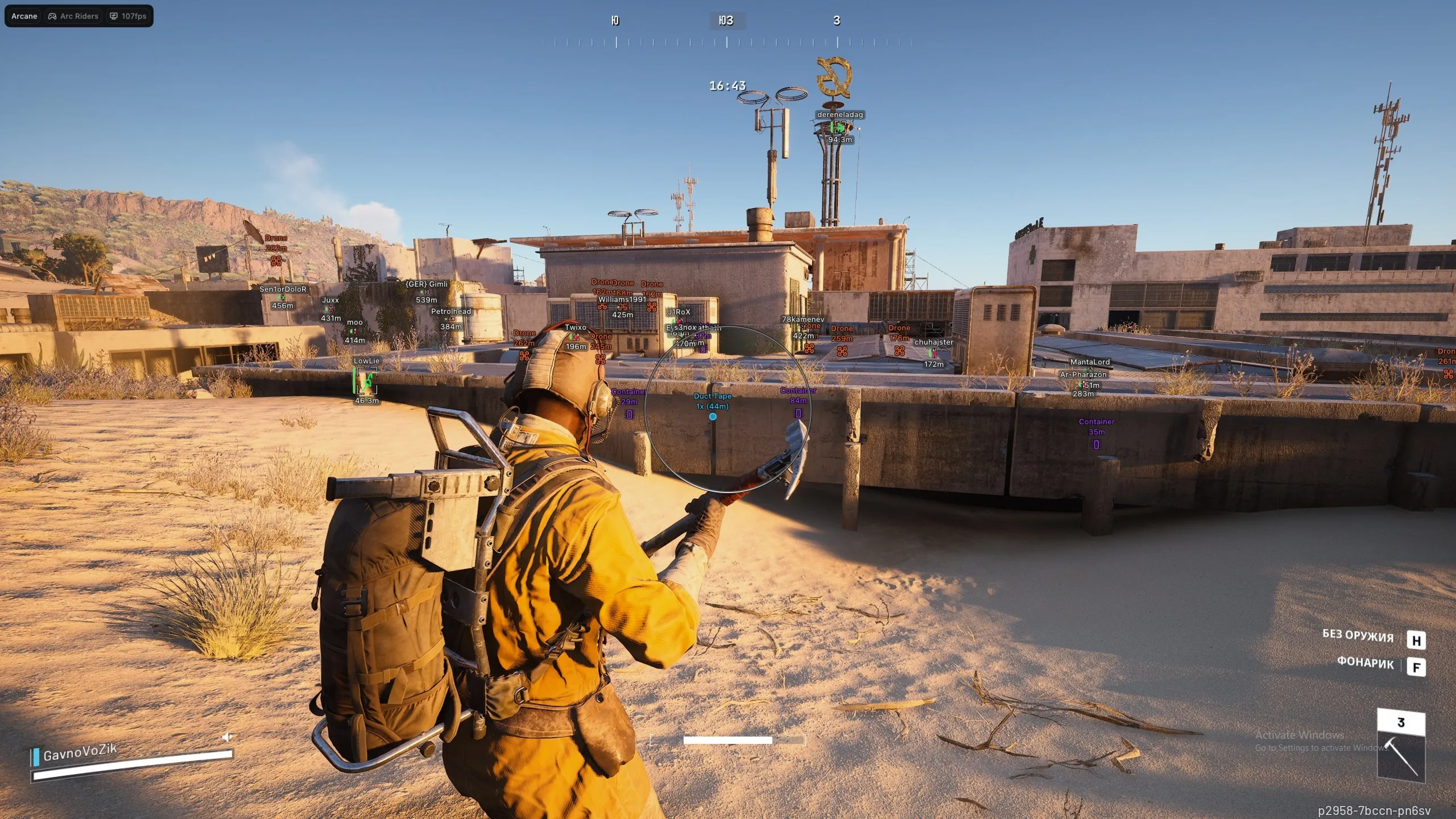
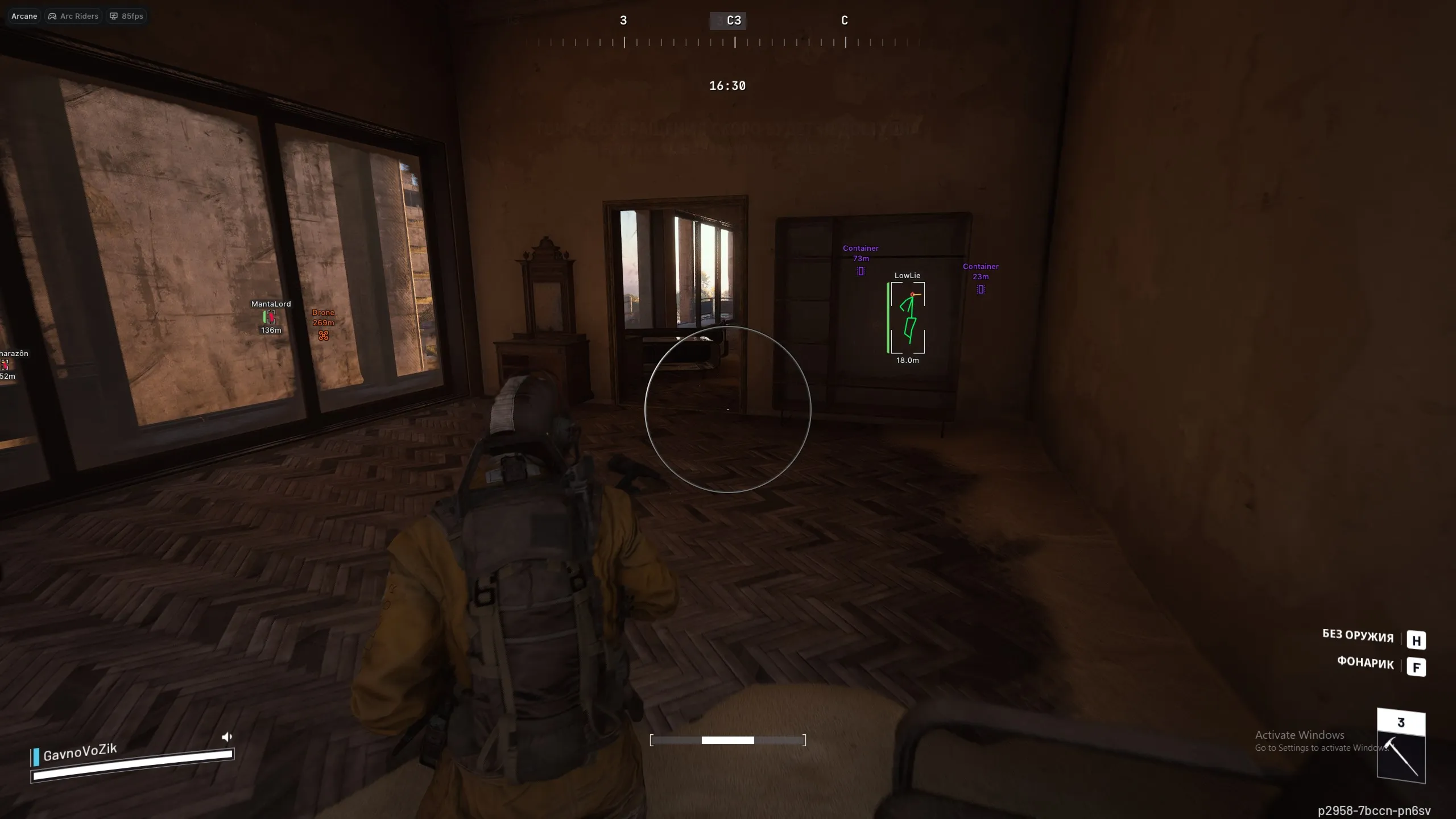
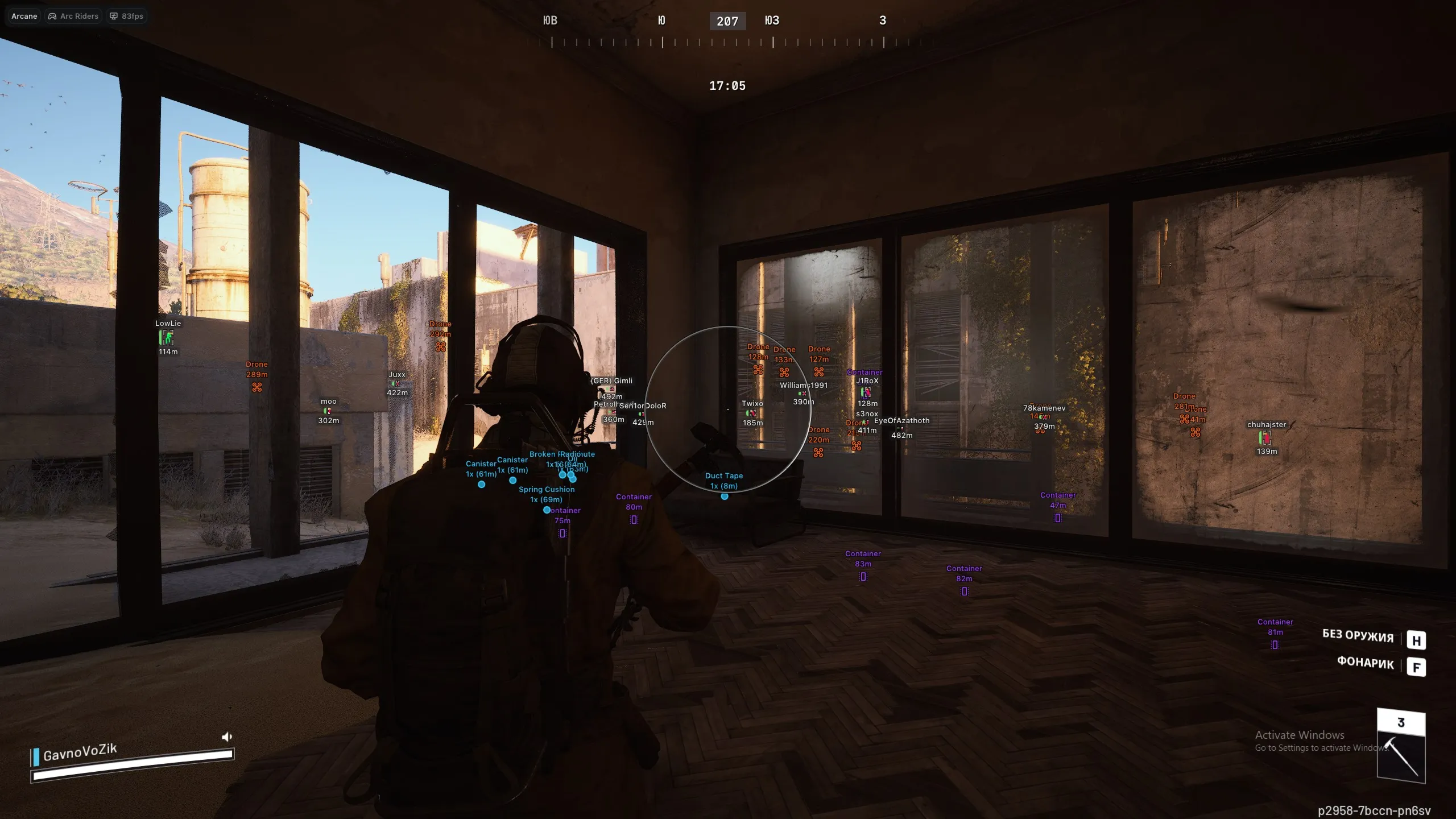
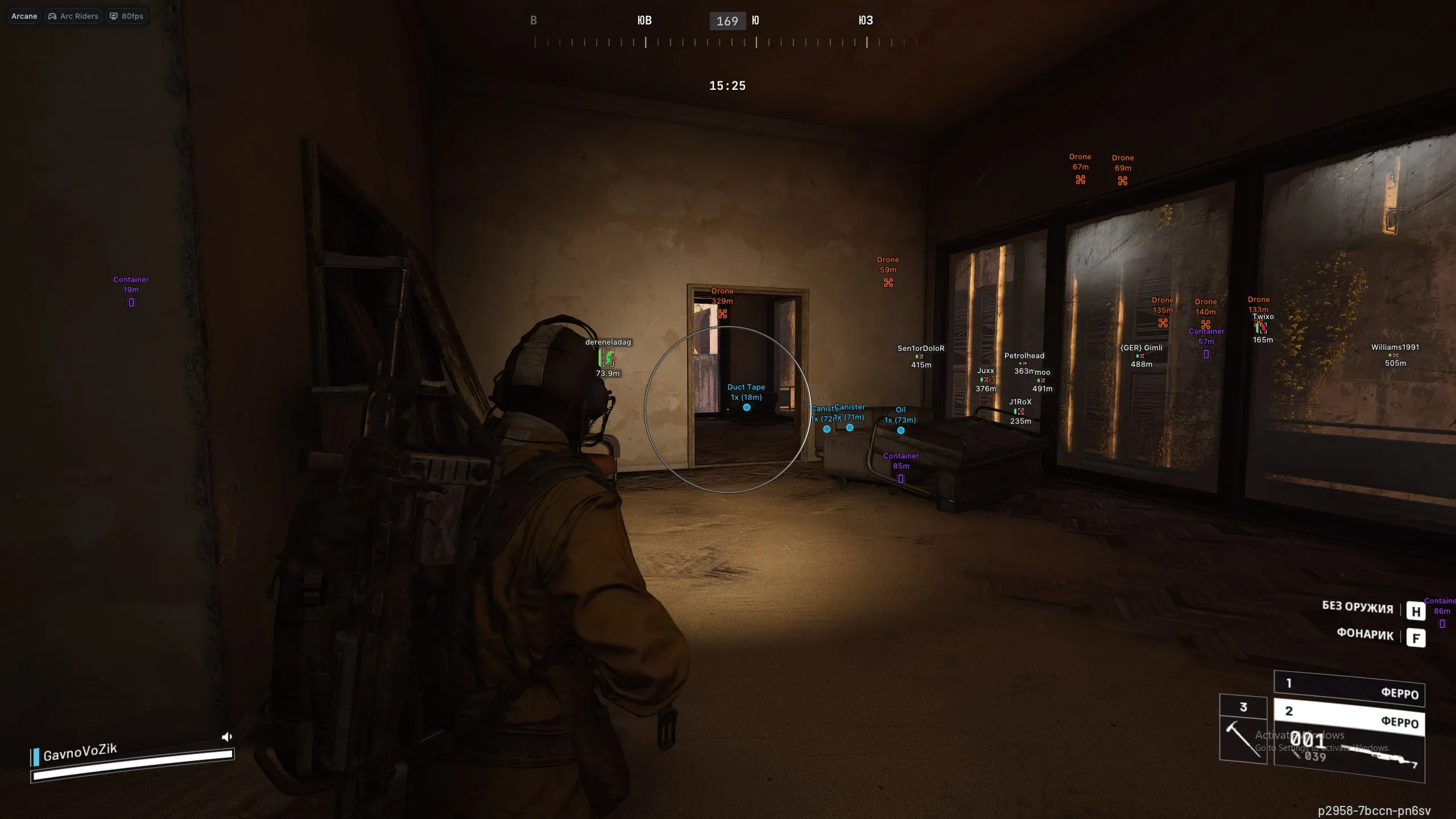
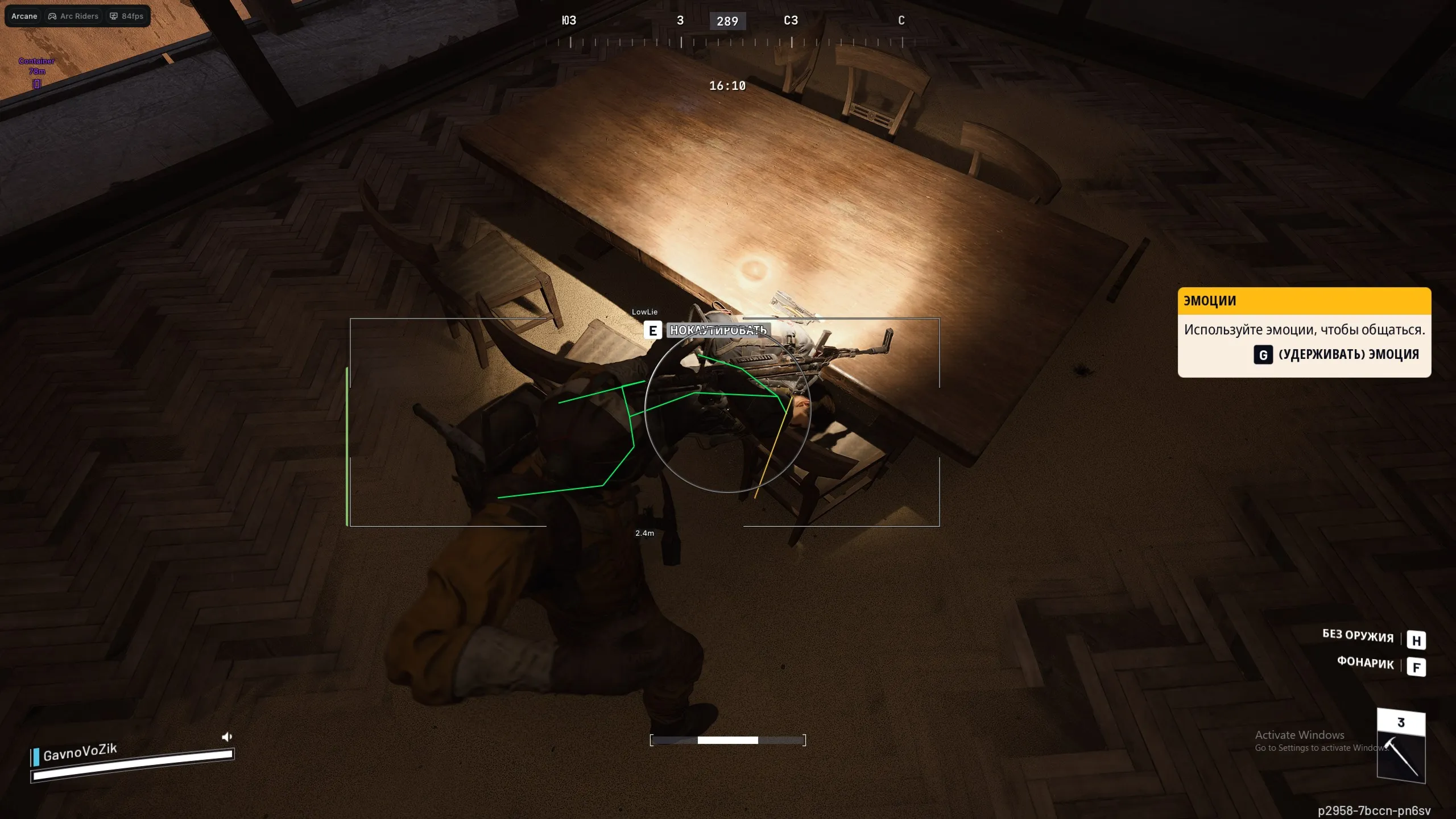
Bounding Box – Draw a 2D box around enemies (Full Box or Corners). Fill Box – Adds a background color to the player box (Static or Gradient). Skeleton – Draws the enemy's bone structure. Head Circle – Draws a circle on the head. Fill Head Circle – Fills the head circle with color. Thickness – Adjusts the width of the skeleton lines. Line to Enemy – Draws "Snaplines" from your position to the enemy. Health Bar – Displays health status (Static, Health-based, or Gradient). View Line – Shows a line indicating where the enemy is looking. Name – Displays the player's username. Distance – Shows how far away the enemy is. Draw Bots/Teammates – Toggle ESP for AI or your own team. Visibility Check – Changes ESP color based on whether the enemy is visible. Bot Transparency – Adjust how visible bot ESP is to reduce clutter. Max Distance – Sets the limit for how far away player ESP is drawn.
Item ESP
Show Count – Displays the number of items in a stack/area. Show Distance – Shows how far away the item is. Drone – Highlights player drones or utility. Container – Highlights crates, bins, or boxes. Dropped Item – Highlights loot and weapons on the ground.
Radar
Enable – Toggle the 2D radar on-screen. Show Distance – Displays distance to targets on the radar. Zoom – Adjust the scale of the radar map. Size (X/Y) – Adjust the height and width of the radar window. Distance Transparency – Change the opacity of the distance text. Colors – Customize the Outline and Background colors of the radar. Entities – Choose to show Players, AI/Bots, or Team members on the radar.
Settings
Menu Keybind – Change the key used to open the software menu. Unload Keybind – Set a "Panic Key" to completely exit the software. DPI Scale – Resizes the menu UI for different monitor resolutions. FPS Limit – Caps the menu frame rate to reduce system load. Theme – Switch between Dark and Light visual modes. Watermark – Toggle the on-screen software logo. Language – Supports English (EN), Russian (RU), and Chinese (CN).


